
Let’s get your print off the bed.
Everything you need to open my files, get the colors right, and fix the little stuff that trips everyone up. Start at the top if you’re new. Jump around if you’re not.
Lost your files? Skip the email.
Download links in your order email expire. Your customer dashboard never does. Log in anytime to grab every file you’ve ever bought from me.
Two kinds of files. Pick the one that fits.
Every download comes with a 3MF and a set of STLs. They’re the same pieces, packaged two different ways.
Want my colors? Use this one.
One file with every piece already laid out on the plate and colored in.
- All pieces arranged and ready to slice
- Colors already assigned to each part
- Default print settings, nothing fancy
- Recolor anything you want (see below)
Want to do your own thing? Use these.
One file per piece, no color, no plate layout.
- Print just one piece, or ten of the same one
- Paint the colors yourself from scratch
- Print it all in one color (great without an AMS)
- Mix pieces from different sets on one plate
That’s just how the file type works. If you open an STL and everything looks gray, nothing’s broken. Grab the 3MF and the colors show up.
From download to printing.
-
Download
Grab your ZIP from your customer dashboard. It lands in your Downloads folder.
-
Unzip it
A ZIP is just a folder that holds all your files together. Double click it on a Mac, or right click and choose Extract All on Windows. Do this once and you’re set.
-
Pick your file
Colors ready to go? Open the 3MF. Doing your own colors or printing one piece? Use the STLs.
-
Import it into your slicer
In Bambu Studio, go to File, then Import, and pick your file. You can also press Ctrl + I on Windows or Cmd + I on Mac.
My go to: Import. Open works for a lot of people, but I have way better luck with Import, so that’s what I use pretty much every single time. If Open gives you trouble, try Import instead.
Seeing popups? Don’t panic. Your slicer might ask about printer profiles or settings from my file. Click through them and your file will most likely work just fine. Only stop if it says it’s an actual error.
-
Check your plate and colors
Make sure your printer, plate type and filaments look right on the left side. Colors won’t match your spools exactly, and that’s fine. Swap them to whatever you have loaded.
-
Slice and preview
Hit Slice plate, then scrub through the preview. You’re looking for anything floating, missing or way off the plate before it costs you filament.
-
Print
Send it to your printer and watch the first layer go down. If the first layer looks good, the rest usually follows.
How to recolor the 3MF.
My screenshots are from Bambu Studio, but OrcaSlicer and Snapmaker Orca work the same way.
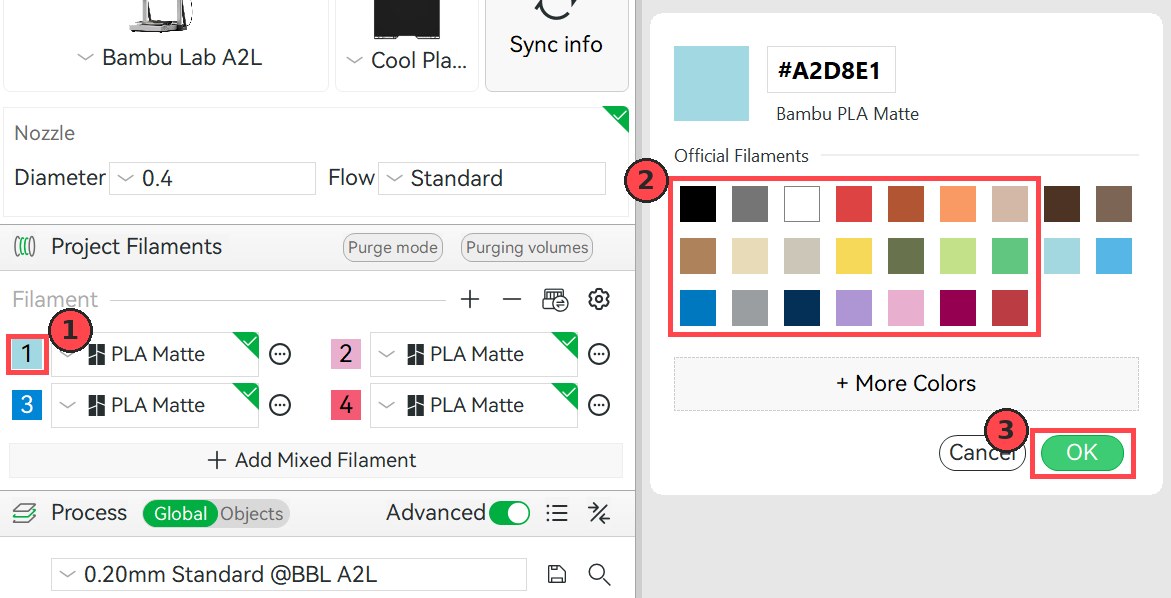
Swap the filament
- Under Project Filaments, click the colored number square next to any filament.
- Pick your new color.
- Hit OK.
Every part using that filament changes at once.
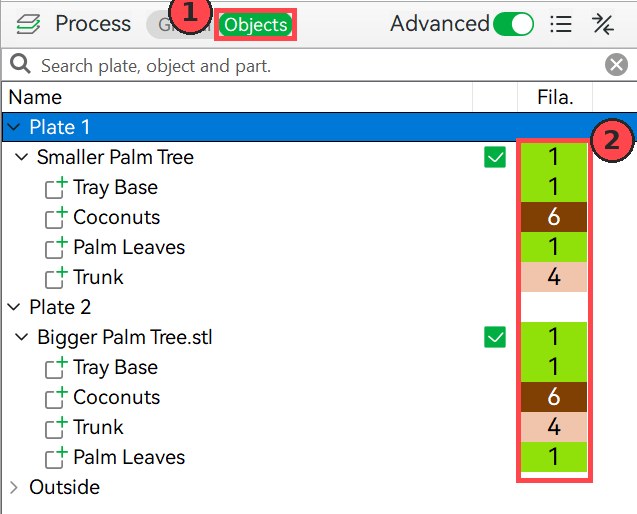
Use the Objects list
- In the Process section, switch from Global to Objects.
- Find the piece or part you want.
- Click its number in the Filament section (it shows as “Fila.” on screen) and choose a new one.
Best when you want to recolor one part without changing every other part that shares its color.
Alt or Option click
- Hold Alt on Windows or Option on Mac.
- Click the part you want to change, like the coconuts on a palm tree.
- Press the number of the filament you want (hotkeys below).
Super handy for the little details.
Recolor with hotkeys
Every filament has a number. Select any piece or part, then type that number and it switches to that color instantly.
Select the coconuts, press 5, and they turn whatever color filament 5 is. Got 10 or more filaments? Type the full number, like 10.
About printing in color
Printing several colors in one go takes a multicolor system, like an AMS. Without one, your printer prints one color at a time.
No AMS? Use the STLs and print each color as its own plate, or print the whole set in one color. Both look great.
Not on Bambu?
I prep everything in Bambu Studio, but the files open in pretty much any slicer: OrcaSlicer, PrusaSlicer, Cura, and the rest.
Some Bambu specific info, like colors, plate setup and settings, might not carry over. If something looks off, use the STLs and set it up the way you like.
Fix it by what you see.
The most common 3D printing hiccups, in plain words. Tap the one that sounds like your print.
My first layer isn’t stickingCorners lifting, pieces sliding around, or a tangle of plastic.
Usually caused by
- Fingerprints or oils on the build plate
- The plate type in your slicer doesn’t match the plate on your printer
- A draft or a cold room
Try this
- Wash your plate with dish soap and warm water, then dry it and stop touching the print area
- Double check the plate type setting in your slicer
- Add a brim for small or skinny pieces
There are gaps in my linesThin, patchy layers or tops that look see-through.
Usually caused by
- Under extrusion: not enough plastic coming out
- Wet filament (it soaks up moisture from the air)
- A partial clog in the nozzle
Try this
- Dry your filament, especially if the spool has been sitting out
- Run a flow calibration from your printer or slicer
- Clean or swap the nozzle following your printer brand’s steps
It looks blobby, bumpy or roughLittle zits on the surface, ridges, or a weird lumpy texture.
Usually caused by
- Over extrusion: too much plastic coming out
- Wet filament popping as it heats
- The wrong filament profile selected
Try this
- Pick the filament profile that matches your actual brand and type
- Dry the spool
- Run a flow calibration
There are spider webs everywhereThin strings between pieces.
Usually caused by
- Wet filament (the number one cause)
- Printing a little too hot for that filament
Try this
- Dry your filament first, it fixes most stringing
- Use the profile for your exact filament
- A quick pass with a heat gun or hair dryer cleans up leftover wisps
Small pieces got knocked overTiny parts popped off mid print or came out messy.
Usually caused by
- A small footprint with not much plate contact
- A dirty plate
Try this
- Add a brim to those pieces
- Clean the plate
- Print tiny pieces on their own plate if a full set keeps failing
The colors bled into each otherStreaks of one color showing up in another.
Usually caused by
- Not enough purging between color changes, especially going from dark to light
Try this
- Increase the flushing volume for that color pair in your slicer
- Keep the prime tower turned on
The bottom edge flares outThe first few layers are wider than the rest, sometimes called elephant foot.
Usually caused by
- The first layer squishing a little too much
- A bed that runs hot
Try this
- Run your printer’s bed leveling or calibration
- Lightly sand or trim the edge on finished pieces
My print came out with spaghettiA big nest of plastic where your print should be.
Usually caused by
- The print came loose from the plate partway through
Try this
- Start with the first layer fixes above
- Clean the plate and add a brim
- Turn on spaghetti detection if your printer has it
Safety and materials.
Supervise playtime
Many of my designs include small pieces. They’re a choking hazard for little ones, so keep them away from kids under 3 and supervise play.
Not food safe
3D prints aren’t food safe. Use them with play dough and pretend food, not for real eating or drinking.
PETG for water
Anything headed for the water table, bath or sensory bin with water should be printed in PETG. PLA can soften and warp over time.
Check your prints
Look over pieces before play and toss anything cracked, sharp or broken. Prints wear out, just like any toy.
Go straight to the pros.
Your printer and slicer brands know their machines best. Their help sites have step by step fixes, videos and support teams made for exactly this.
Heads up: I’m a designer, not printer tech support, so I can’t troubleshoot printers or slicer settings. Questions about your order or downloads? Reach out here.
